Thursday, November 19, 2026
Is That Room Ready Yet? What’s New in Front Desk, Housekeeping, and Tasks

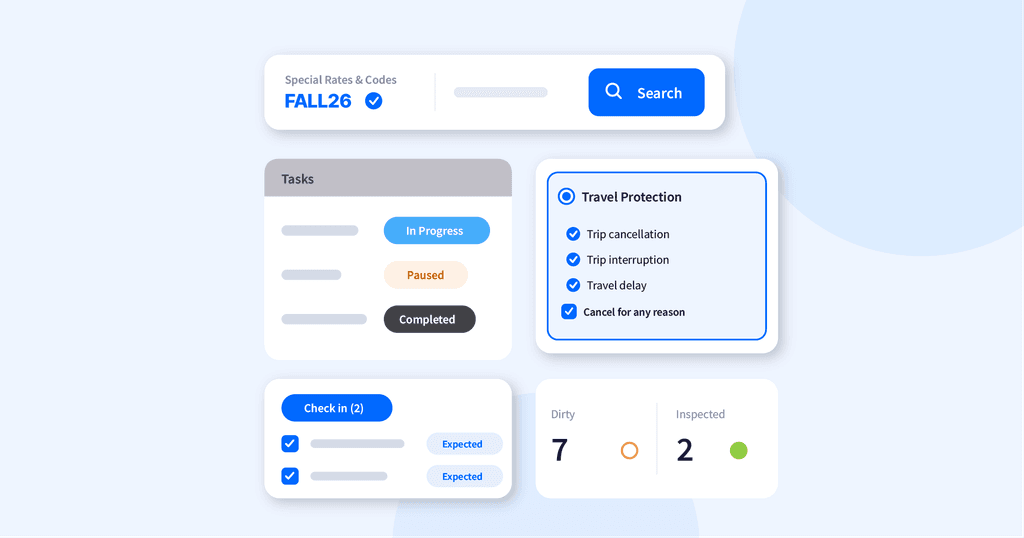
When I ask owners and front desk managers about the hardest part of their day, I hear the same answer: mid-afternoon. Guests are checking out, rooms are turning over, arrivals are walking in, and everyone wants to know the same thing. Is that room ready yet?
As a former property owner, I know that stretch well. This release is built for it.
We’ve reworked three areas of Think PMS, our property management system, that your team uses all day: the Front Desk Dashboard, Housekeeping, and Tasks. They share one goal: fewer clicks at the desk, a clearer picture of housekeeping, and a record of every job that gets done.
Here’s what’s new in each, and why I think it matters, whether you run six rooms or sixty.
Front Desk Dashboard: A Screen You Work From
A group booked into six rooms arrives at once. Until now, that meant opening six reservations, one after another, as the line grew. The dashboard has always shown you the day. Now you can run the day from it.
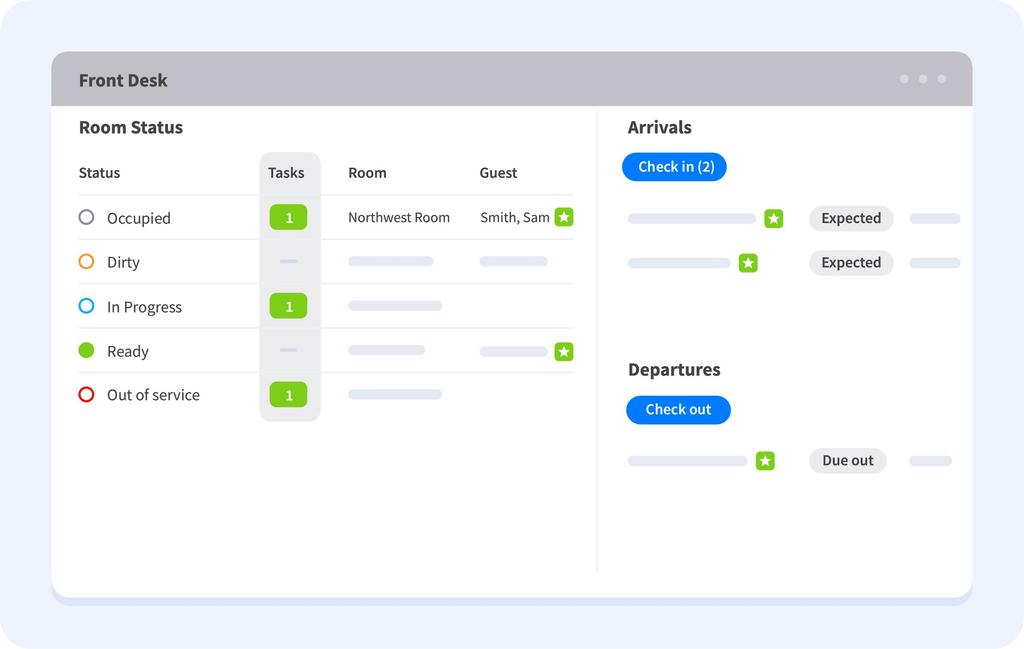
- Check guests in and out from the dashboard. Select one guest or several guests, then click Check in or Check out and confirm. Before anything is completed, you’ll see what was checked: whether the room is ready (and if not, exactly why), whether a balance is owed, and whether any card authorizations or tasks are still open. A warning never stops you. It makes sure you make a decision with the full picture.
- Read room status at a glance. Every room shows a plain-language label: Ready, In progress, Dirty, Occupied, or Out of service. The new Arriving and Departing columns show who is leaving each room today and who is coming in to take their place.
- Answer walk-ins with confidence. The Ready for Walk-ins filter shows only the rooms you can truly sell tonight. A new Nights free column shows how long each one stays open, so you can answer the guest who asks, “Could we stay through Sunday?”
The dashboard also refreshes itself every minute, and you can pick a future date to preview that day’s arrivals and departures.
For the full walkthrough, read the Front Desk Dashboard help center article.
Housekeeping: See the Work, Not Just the Schedule
A schedule tells you what you asked for. It doesn’t tell you what you got. Housekeeping now shows you both.
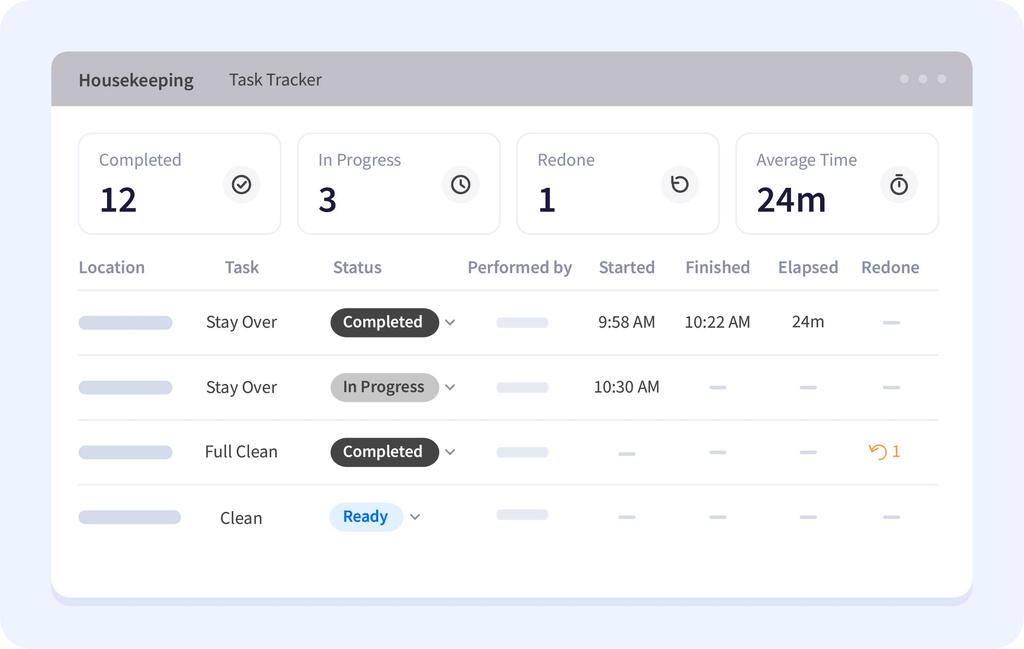
- A new Task Tracker. A new tab on the Housekeeping Dashboard lists every housekeeping task for the day you choose: who did it, when it started and finished, how long it took, and whether it had to be redone. Totals at the top show completed cleans, cleans in progress, redos, and your average clean time.
- An Activity report that shows what happened. A new Outstanding work tab puts what each housekeeper was assigned next to what they actually did. Click the arrow beside any housekeeper’s name to see each job they were assigned, then export the totals or the full job list to a spreadsheet.
- Redo tracking. When a room needs to be cleaned again, the redo is counted, and the first attempt remains on record. One redo is a bad day. A pattern of redos is a conversation worth having, and now you’ll have the facts when you have it.
Managers can also change a room’s status right from its row, or update several rooms at once.
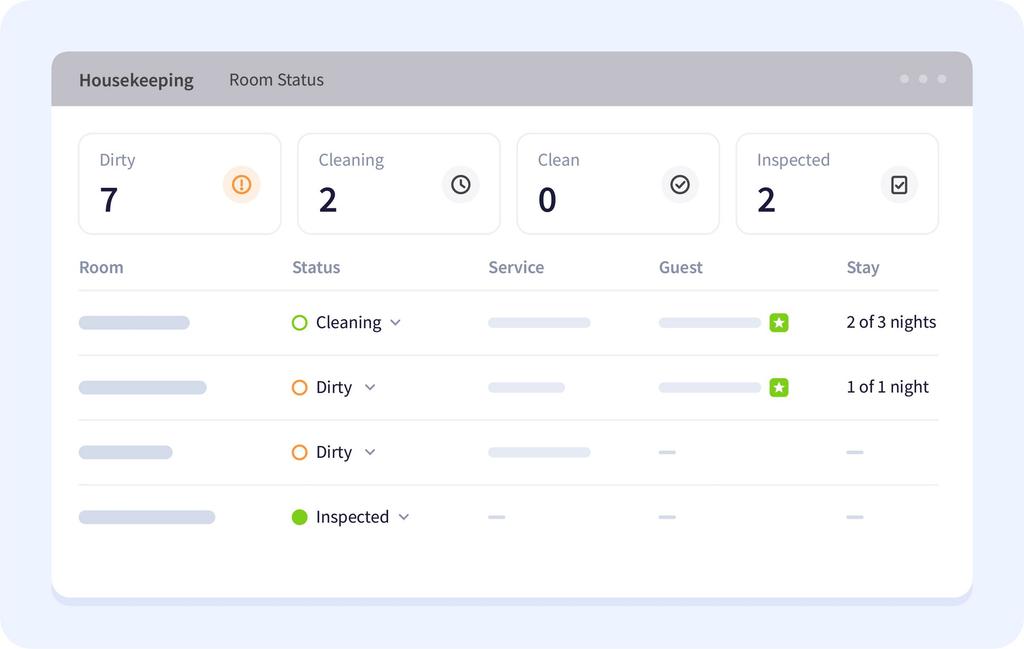
For the full walkthrough, read the Housekeeping Module help center article.
Tasks: Keep the List Current Without the Clicks
A team keeps a task list current only when updating it is easier than ignoring it. So we took out the extra clicks.
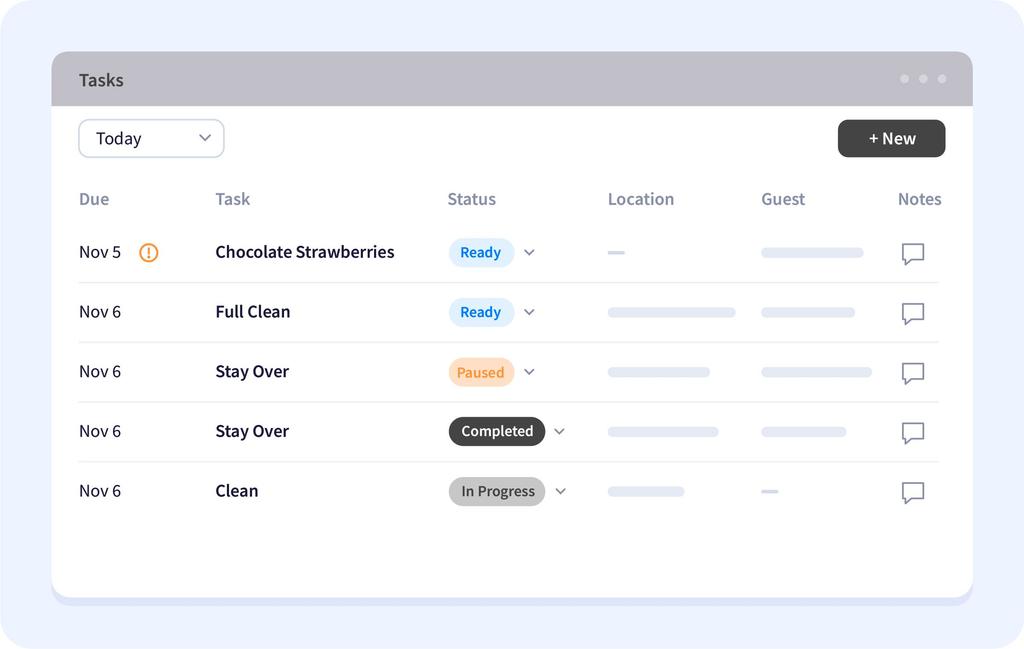
- Update tasks without opening them. Change a task’s status and add notes right from the list. A housekeeper with ten rooms no longer opens ten tasks to say they’re done.
- Pause, Resume, and Reopen. Put a task on hold and pick it up later, or reopen a finished one that needs to be done again. You’ll only see the options that make sense for where the task stands.
- A full history on every task. Each status change is recorded with who made it and when, so “Who marked this done?” finally has an answer.
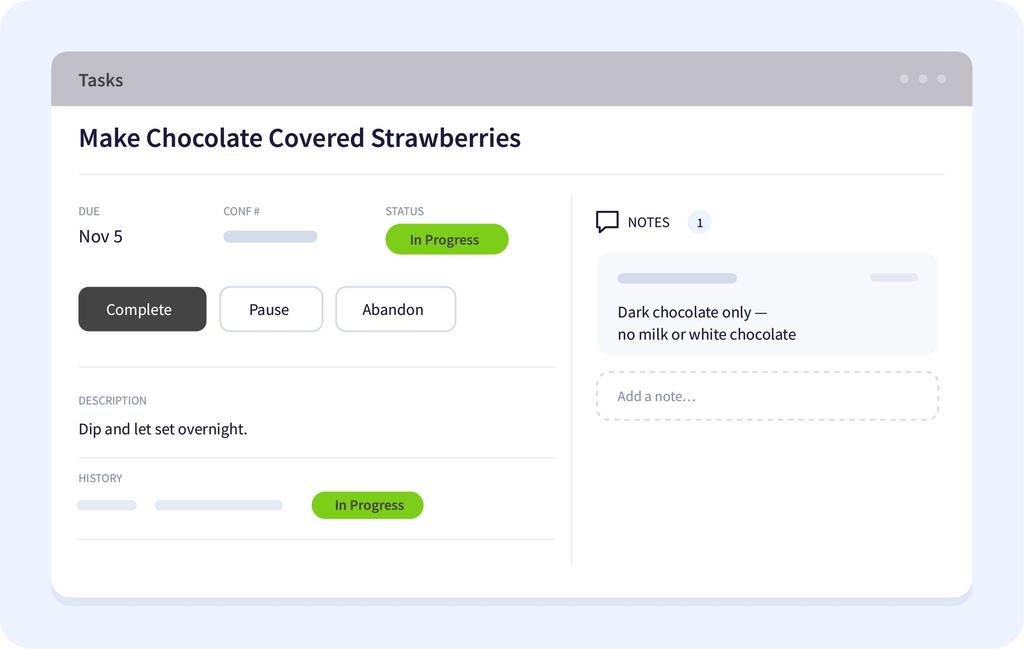
Filters got a tune-up, too. Active now shows only outstanding work, and Started shows tasks in progress.
For the full walkthrough, read the Tasks help center article.
All Three Work on a Phone
On a phone, each list becomes a set of cards, with the controls your team needs on each card. They can check a guest in, change a room’s status, or update a task from anywhere on the property.
Two Things to Know Before You Start
Give each housekeeper their own user. The Task Tracker and the Activity report credit work to whoever was logged in when it was done. Each housekeeper needs their own user with an email address, and they should update tasks while signed in as themselves. Otherwise, their work may show as "No activity recorded" even after a full day.
Some check-ins still happen in the reservation. If your property collects information at check-in or check-out, such as ID verification or tax credentials, you’ll still check those guests in or out from the reservation so that information gets collected.
Where to Find It
These updates are now available in your account. To start using them, turn each one on under Settings > Feature Flags:
- Front Desk: turn on Enable new front desk.
- Tasks: turn on Enable new tasks.
- Housekeeping: turn on Enable housekeeping assignments module.
Once they’re on, here’s where to find each one:
- Front Desk Dashboard: click Front Desk in the main menu.
- Housekeeping: open the Housekeeping Module from the ThinkReservations logo in the top-left corner.
- Tasks: click the task list icon in the top-right corner, or choose Tasks from the main menu.
If something doesn’t work the way you expect, tell our Support Team. We’d much rather hear about it than not.
Not using ThinkReservations yet? Request a demo, and we’ll show you all three in action.
Faster check-ins. Clearer housekeeping. Every task on record.
Frequently Asked Questions
Can I check in several guests at once in Think PMS?
Yes. On the Front Desk Dashboard, select the guests, click Check in, and confirm. One confirmation covers the whole group and flags any guest whose room isn’t ready.
How do I know which rooms I can sell to a walk-in?
Use the Ready for Walk-ins filter on the Front Desk Dashboard. It shows only the rooms that can be sold tonight, and the Nights free column shows how many nights each one stays available.
Can Think PMS show who cleaned a room and how long it took?
Yes. The Task Tracker on the Housekeeping Dashboard shows who performed each task, when it started and finished, and how long it took. Each housekeeper needs their own user with an email address for their work to be credited.
What happens when a room has to be cleaned again?
Reopening the task counts as a redo on the Task Tracker and the Activity report, and the record of the first attempt is kept.
Can I pause a task and finish it later?
Yes. A task that’s in progress can be paused and resumed. A Completed or Aborted task can be reopened if the work needs to be done again.
Do these features work on a phone?
Yes. The Front Desk Dashboard, the Housekeeping Dashboard, and the Tasks page all switch to a card layout on a phone.
E Scot Fuller is the Director of Product Advocacy at ThinkReservations, with over 20 years of experience in hospitality.
Related